Bio
I work at the intersection of AI and robotics, building robotics systems with simulation and vision-language models. My focus is on deploying large models on edge devices, training in simulation, and testing on physical robots. Currently at NVIDIA (Oct 2020-present), I serve as Senior Staff Developer Advocate, leading engaging live demonstrations of NVIDIA's technology stack, showcasing tools like Small & Large Language Models (SLMs/LLMs), Vision-Language Models (VLMs), Vision-Language Agents (VLAs), AI Agents, Robotics, Simulation, and Jetson platforms to inspire and educate developers, students, researchers, and businesses.
I spent 4 years as Technical Marketing Engineer for Jetson Embedded/Robotics in EMEA (2020-2024), specializing in running the latest Generative AI SOTA software on embedded AI devices (GPT, Llama, Mixtral, Qwen, LLaVa, InternVL, and other multimodal models) and sharing the knowledge in the simplest way possible, before transitioning to my current global role as Senior Staff Developer Advocate.
I create and deliver technical content, including workshops and hands-on labs, to show the power of NVIDIA's AI solutions including multimodal AI systems that can understand and generate both vision and language. This helps communities and industry partners apply these technologies in real-world situations, from robotics applications with VLAs to intelligent systems powered by VLMs. I develop educational resources that simplify AI concepts, focusing on making knowledge accessible to a wide range of audiences, from seasoned professionals to those just starting out.
I work with large language models, VLMs (Vision-Language Models), and VLAs (Vision-Language-Action models for robotics). I integrate GR00T, NVIDIA's foundation model for humanoids, with physical robots like the LeRobot SO-100/101 arms to validate behavior outside simulation. I create technical demos and workshops on advanced ML topics, presenting at international conferences and universities.
Previously at IBM (2019-2020), I led the Global Quantum Community Lab after winning an IBM Quantum hackathon with an XR circuit viewer. I hold an IBM patent for 3D quantum circuit visualization (patent ↗), a method later adopted by Google Quantum AI. I designed and executed digital experiences to grow the developer community and organized inspiring hackathons in the Swiss Alps and Tokyo mountains to attract developers to the quantum computing ecosystem.
I've also explored VR with passion, creating a home-based, wheeled 6DOF experience (think "Mario Kart" in VR) (video ↗), which landed me in the Oculus Launchpad program at Meta.
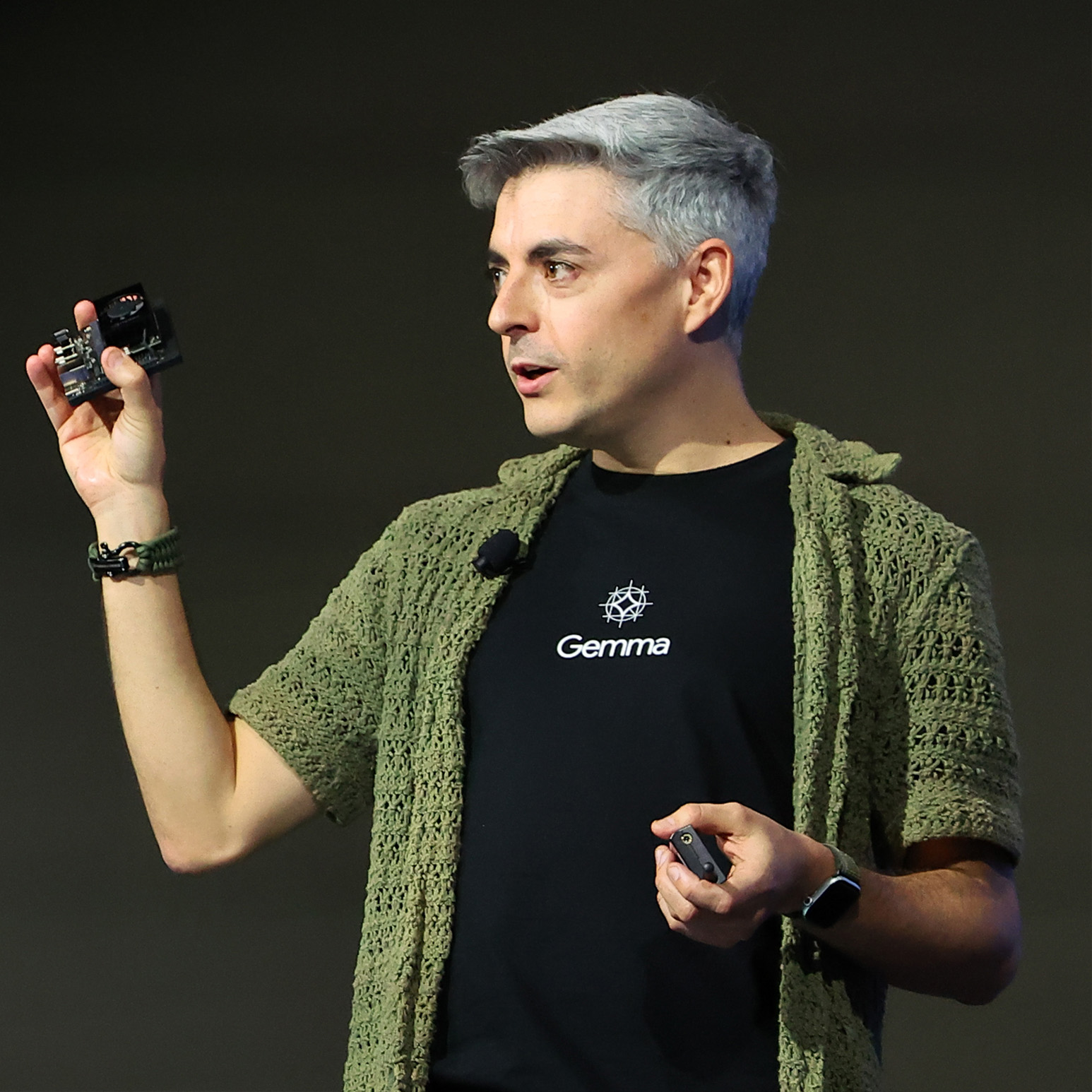
I present at international conferences, universities, and industry events, including the international debut of Gemma 2 and Gemma 3 at Google Tokyo (video ↗) alongside Google's CEO with live demo on Jetson devices. Awards include TechCrunch Disrupt SF winner (2015 ↗), Qualcomm Developer of the Month nomination, and recognition as one of the top 30 Spanish tech voices by Business Insider (article ↗). I hold a Telecommunications Engineering degree from University of Deusto (ProUD Alumni ↗), Top 50 Graduate.
Current Role & Focus
- Live Demonstrations: Leading engaging demos of NVIDIA's technology stack including SLMs/LLMs, VLMs/VLAs, AI Agents, Robotics, Simulation, and Jetson platforms.
- Technical Content Creation: Developing workshops and hands-on labs to help communities and industry partners apply AI technologies in real-world situations.
- Educational Resources: Simplifying AI concepts to make knowledge accessible from seasoned professionals to beginners.
- Generative AI on Edge: Specializing in running latest SOTA models (GPT, Llama, Mixtral, Qwen, LLaVa, InternVL) on NVIDIA Jetson embedded devices.
- Multimodal AI Systems: Working with Vision-Language Models (VLMs) and Vision-Language Agents (VLAs) for robotics and intelligent applications.
- Community Engagement: Working with developer communities, students, researchers, industry partners and enterprise developers globally.
Speaking & Global Engagement
I lead engaging live demonstrations of NVIDIA's technology stack at international conferences, universities, and industry events:
- Google Tokyo: Presented the international debut of Gemma 2 & Gemma 3 models alongside Google's CEO with live demo on Jetson devices.
- International Conferences: Regular speaker showcasing LLMs, VLMs/VLAs, AI Agents, Robotics, and Simulation platforms.
- Universities & Academic Institutions: Connecting with students and researchers to promote innovation in AI and robotics.
- Industry Events: Creating and delivering technical workshops and hands-on labs for developers and enterprise partners.
- Developer Communities: Building and engaging with global communities around Generative AI on embedded devices.
- TEDx & MIT Enterprise Forum: Making complex AI technology accessible through "wow-effect" demonstrations.
Technical Expertise
• Vision-Language Models (VLMs)
• Vision-Language Agents (VLAs)
• GPT, Llama, Mixtral, Qwen, LLaVa
• InternVL & Multimodal Systems
• Edge Computing Devices
• Robotics Platforms
• Simulation Environments
• Multimodal AI Applications
• Industry Applications
• Smart Spaces
• Computer Vision
• Developer Advocacy
• Educational Content
• International Speaking